The End of AzureAD PowerShell - What Now?
 Robert Prüst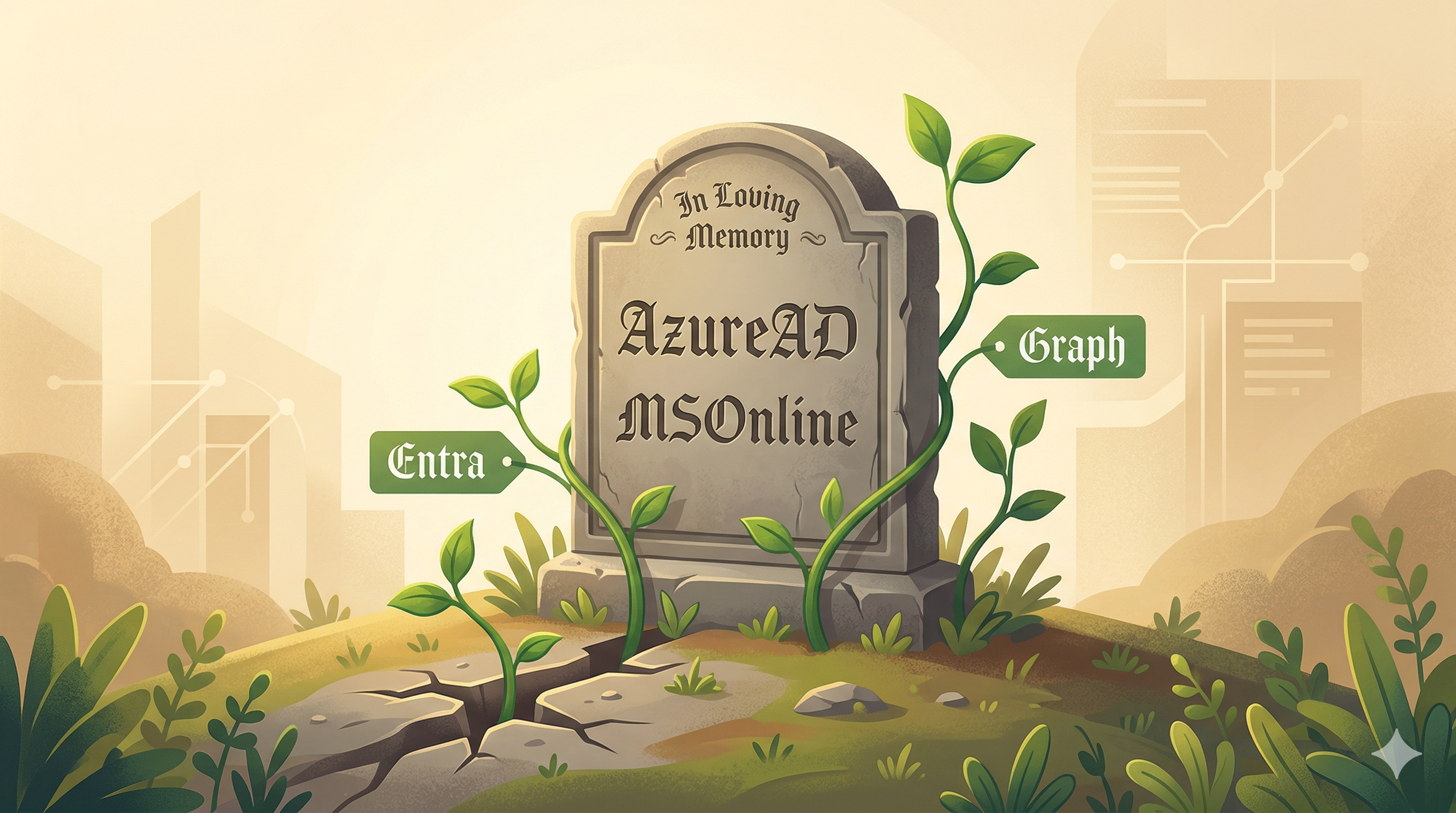
After years of warnings, extensions, and “we really mean it this time” announcements, the AzureAD and MSOnline PowerShell modules are officially retired.
If you’ve been putting off the migration… well, the deadline has passed. The modules stopped working in 2025 — MSOnline went first around April/May, and AzureAD followed after July. If your scripts are still using Connect-AzureAD or Connect-MsolService, they’re broken by now.
The good news? You have two solid paths forward: Microsoft Graph PowerShell SDK and the newer Microsoft Entra PowerShell module. Let me walk through both, because the right choice depends on your situation.
A Quick Timeline of How We Got Here
For those who like context:
- 2020: Microsoft starts hinting that AzureAD PowerShell is living on borrowed time
- June 2023: Official deprecation notice — AzureAD and MSOnline will be retired
- March 2025: Deprecation notice period ends, no more support commitments
- January–March 2025: Microsoft runs temporary outage tests to force people to notice
- April–May 2025: MSOnline stops working permanently
- July 2025: AzureAD stops working permanently
If you hit one of those outage windows and suddenly your scripts broke for a few hours — that was Microsoft’s way of saying “seriously, migrate.”
Your Two Options
Option 1: Microsoft Graph PowerShell SDK
The Microsoft Graph PowerShell SDK is the “official” replacement and has been around for a while. It’s a direct wrapper around the Microsoft Graph API, which is Microsoft’s unified API for all their cloud services.
The naming convention is straightforward — replace AzureAD with Mg:
| AzureAD (old) | Microsoft Graph (new) |
|---|---|
Connect-AzureAD |
Connect-MgGraph |
Get-AzureADUser |
Get-MgUser |
New-AzureADUser |
New-MgUser |
Set-AzureADUser |
Update-MgUser |
Get-AzureADGroup |
Get-MgGroup |
Get-AzureADApplication |
Get-MgApplication |
The catch? The connection model is different. With AzureAD, you could just run Connect-AzureAD and you had access to everything your account could see. With Graph, you need to specify scopes (permissions) upfront:
# Old way
Connect-AzureAD

# New way — you need to specify what you want access to
Connect-MgGraph -Scopes "User.Read.All", "Group.Read.All"
This is actually more secure — you’re explicitly requesting only the permissions you need — but it does mean you need to think about what your script is doing before connecting.
Microsoft maintains a full cmdlet mapping table that covers both AzureAD and MSOnline equivalents. Bookmark it — you’ll use it a lot during migration.
Pro tip: If you’re not sure which Graph command replaces something, use Find-MgGraphCommand:
# Find what replaces a specific AzureAD command
Find-MgGraphCommand -Command "Get-AzureADUser"
This shows you the equivalent command and the permissions it needs.
Option 2: Microsoft Entra PowerShell
The Microsoft Entra PowerShell module hit GA in early 2025 and takes a different approach. Instead of requiring you to learn an entirely new set of commands, it offers a compatibility layer that supports over 98% of the old AzureAD cmdlets through aliases.
Here’s the quick migration path:
# Install the Entra module
Install-PSResource -Name Microsoft.Graph.Entra

# In your existing script, replace Connect-AzureAD with these two lines:
Connect-Entra
Enable-EntraAzureADAlias

# Now your old AzureAD commands work as-is
Get-AzureADUser -ObjectId "user@domain.com"  # This still works!
That’s it. Enable-EntraAzureADAlias creates aliases so that your existing Get-AzureADUser calls get routed to the Entra equivalents behind the scenes.
But wait — which one should I use?
Here’s how I’d think about it:
- You have a lot of existing scripts and need to migrate fast? → Start with Entra PowerShell +
Enable-EntraAzureADAlias. Get things working again first, then gradually move to native Entra or Graph commands. - You’re writing new scripts from scratch? → Use the Microsoft Graph PowerShell SDK directly. It’s the lowest-level option and gives you the most control.
- You need to manage more than just identity stuff? → Graph PowerShell SDK covers all of Microsoft 365, not just Entra/Azure AD. If your script touches users and mailboxes and Teams, Graph is where it all comes together.
Checking Your Scripts Before They Break
If you’ve migrated to Entra PowerShell, there’s a handy cmdlet called Test-EntraScript that can verify your scripts are compatible. It’s part of the Microsoft.Graph.Entra module — the same one you installed for the migration above:
# Make sure the module is installed
Install-PSResource -Name Microsoft.Graph.Entra

# Test a specific script for compatibility issues
Test-EntraScript -Script .\MyAzureADScript.ps1
This checks your script for any AzureAD commands that don’t have an Entra equivalent, and tells you exactly which lines need attention — including the line number and the specific command that’s incompatible.
Finding Old AzureAD Usage in Your Environment
If you’re not sure which scripts in your environment still use the old modules, here are a few ways to find them:
# Search for AzureAD module imports in your scripts folder
Get-ChildItem -Path "C:\Scripts" -Filter "*.ps1" -Recurse |
    Select-String -Pattern "AzureAD|Connect-AzureAD|Import-Module AzureAD" |
    Select-Object Path, LineNumber, Line
Also check your Entra admin center — under Identity > Monitoring > Sign-in logs, you can filter for sign-ins using legacy PowerShell modules. Microsoft also provides an Entra Recommendation called “Migrate from the retiring MSOnline and AzureAD PowerShell usage to Microsoft Graph PowerShell” that shows usage over the last 30 days.
Don’t Forget Your Scheduled Tasks and Automation
The scripts you run manually are the easy ones — you’ll notice immediately when they break. The ones that’ll bite you are:
- Scheduled tasks on servers that still use
Connect-AzureAD - Azure Automation runbooks with AzureAD module dependencies
- CI/CD pipelines that provision or manage Azure AD resources
- Third-party tools that shell out to PowerShell with AzureAD commands
Audit these first. They’re the ones that fail silently at 3 AM.
Final Thoughts
The retirement of AzureAD and MSOnline has been a long time coming, and honestly, both replacements are better than what we had before. The Graph SDK is more powerful, and Entra PowerShell makes the migration much less painful than it could have been.
If you haven’t migrated yet — you’re already late, but Enable-EntraAzureADAlias can get you back on your feet in minutes while you plan a proper migration.
For more details on the retirement timeline, check out Microsoft’s official announcement. For the full cmdlet mapping, see the AzureAD to Microsoft Graph migration guide.
Happy scripting 😊